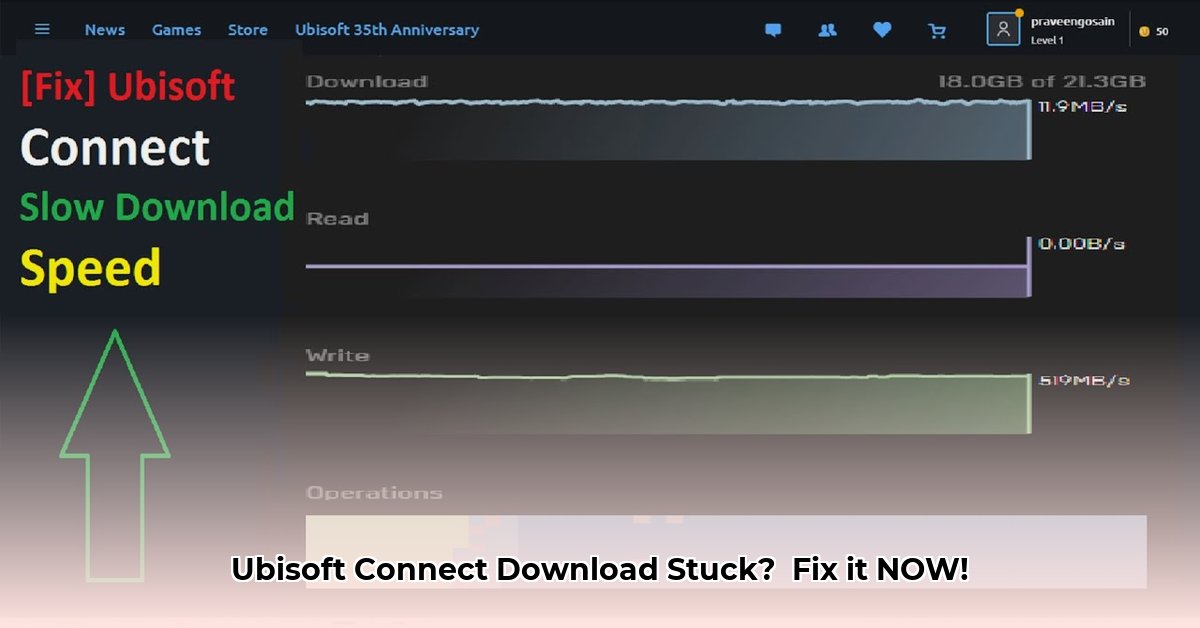
Ugh, that dreaded 0 KB/s download speed in Ubisoft Connect? It's frustrating, but often fixable. This guide provides step-by-step solutions to get your games downloading quickly again. We'll start with simple checks and progress to more advanced troubleshooting. Let's get those downloads moving!
Step 1: Internet Connection Check (The Basics)
Before blaming Ubisoft Connect, verify your internet connection is working correctly. A slow connection is the most common cause of slow downloads.
Run a speed test on another device (many free options are available online). Compare your results to your internet provider's advertised speeds. Significantly slower speeds indicate a problem with your internet service provider (ISP); contact them for assistance.
Here are additional checks:
- Device Overload: Many devices using your internet simultaneously can limit bandwidth. Try disconnecting unnecessary devices to free up resources.
- Wi-Fi Signal Strength: A wired Ethernet connection is typically faster and more stable than Wi-Fi. If possible, connect your PC directly to your router using an Ethernet cable. Alternatively, move your computer closer to the router to improve signal strength.
- Server Location: Ubisoft Connect allows you to select download servers. Choose one geographically closer to you for faster download speeds.
- Router Issues: An outdated router can slow down your connection. Check your router manufacturer's website for firmware updates, which often improve performance and security.
- Quality of Service (QoS): Many routers offer QoS settings. This allows you to prioritize certain types of internet traffic, such as game downloads. Enable QoS and prioritize Ubisoft Connect downloads.
Step 2: Ubisoft Connect Settings Check
Even with a fast internet connection, Ubisoft Connect's settings might be limiting your download speed.
- Bandwidth Limit: Check Ubisoft Connect's settings for a bandwidth limit. Remove or increase this limit to allow Ubisoft Connect to use your full internet speed.
Step 3: Security Software Interference
Antivirus and firewall software, while essential, may mistakenly block Ubisoft Connect downloads.
- Add Ubisoft Connect to Exceptions: Add Ubisoft Connect and its related files to your antivirus and firewall's exceptions list to prevent interference.
Step 4: Operating System Updates
Outdated operating system software can cause various issues, including slow downloads.
- Install Windows Updates: Check for and install any pending Windows updates. A reboot might be necessary after installation.
Step 5: Network Driver Updates
Outdated or corrupted network drivers are a common cause of slow downloads.
- Update Network Drivers: Visit your computer or network card manufacturer's website to download and install the latest drivers. Alternatively, you can use a reputable driver update program, but proceed cautiously and review their privacy policies.
Step 6: Proxy Settings Check
Incorrect proxy settings can hinder downloads.
- Check or Disable Proxies: In Ubisoft Connect's settings, check and/or disable any proxy settings. If you aren't actively using a proxy, disable this setting.
Step 7: VPN Usage (Use With Caution)
A VPN might improve download speeds if you're far from Ubisoft's servers, by connecting you to a closer server. However, VPNs introduce latency (delay) and can slow things down. Only use a reputable gaming VPN if you choose to try this method; carefully review their privacy policy. This should be a last resort.
Software Solution Comparison
Let's compare different methods for resolving slow download issues:
| Software/Method | Pros | Cons |
|---|---|---|
| Manual Driver Updates | Free, reliable when using official sources | Time-consuming, requires some technical knowledge |
| Driver Update Software | Convenient, automated | Potential for bloatware (unnecessary programs), may require a paid license, may collect data |
| Reputable Gaming VPN | May improve speeds if location is far from Ubisoft servers | Adds latency, subscription cost, potential privacy concerns if using a low-quality VPN |
Remember, resolving slow download speeds often involves a process of elimination. Start with the simpler steps; if one doesn't work, proceed to the next. Successfully completing these steps should restore your download speeds and allow you to enjoy your games!
Key Takeaways:
- Slow Ubisoft Connect downloads rarely stem directly from Ubisoft. The problem usually originates from your network, settings, or software.
- Troubleshooting requires a systematic approach. Follow these steps sequentially.
- Updating drivers and checking your Windows Firewall are critical steps.
- Optimizing network settings and adjusting bandwidth limits within Ubisoft Connect dramatically improve download speeds.
⭐⭐⭐⭐☆ (4.8)
Download via Link 1
Download via Link 2
Last updated: Saturday, May 03, 2025